Contents9 sections
You know the place. You can describe the flooded stair, the bell that still rings underwater, and which door the cultists nailed shut. What you don't have is a map, and your players will ask for one about four seconds after they arrive.
This guide walks through making a map in Session Zero Labs. Maps aren't a separate tool here. Every map belongs to a location, such as a dungeon, a town or a kingdom, and you make it on that location's Map tab. The guide names the parts of the map tool and what each one does, then shows three ways to make a map, depending on what you start with: a description, a layout you'd rather draw yourself, or a map already on paper. It also covers editing a sketch, painting it, and what each step costs. The example is the Sunken Chapel, a drowned dungeon with seven rooms.
The parts of the map tool
The map tool lives inside a location. Open or create a location, and its map comes from two places: what you write on the location's other tabs, and what you do on its Map tab.
What the map reads
Three parts of a location feed the map. None of them is required, so use whichever you have.
- The description, on the General tab. It tells the map what kind of place this is. Generate Map reads it to lay the place out, and Beautify Map reads it to paint it. A location with no sub-locations can be laid out from its description alone.
- Sub-locations, listed on the Associations tab. These are the rooms of a dungeon, the buildings of a town, the regions of a kingdom. Create a location with this one as its parent and it is listed here. Generate Map turns each one into an area on the sketch, and Beautify Map reads each one's description to know what is in it.
- Details, on the Details tab. For a city, town or district, Population sets how many streets and buildings Generate Map draws. Beautify Map reads the other details too.
You need at least one of these to generate a sketch or paint from the description. Drawing a map yourself or uploading one needs none of them.
The two sides of the Map tab
A map has two sides, and the Map tab shows one at a time.
The sketch. Rooms, corridors, labels and symbols that you can move, reshape and redraw. You draw it with the drawing tools, or Generate Map lays it out for you. It is plain on purpose. A sketch is where you decide what goes where.
The finished map. One picture of the whole place. It is either a map you uploaded, or a painting made by Beautify Map.
You don't need both sides. A sketch made with the drawing tools is a perfectly good map on its own, and so is an uploaded map with nothing put into the sketch side.
The bar above the canvas
A bar above the canvas switches between the two sides, and each side says what state it is in: 49 shapes, painted, rendering. The same bar shows one gold button, which is always the next step. When nothing is next, there is no gold button.
The line at the top of the bar names what the map will be built from, such as Built from 7 sub-locations and this location's description. Each part is a link to the tab that holds it. If it says there is nothing to build from yet, Generate Map has nothing to lay out, but you can still draw or upload.
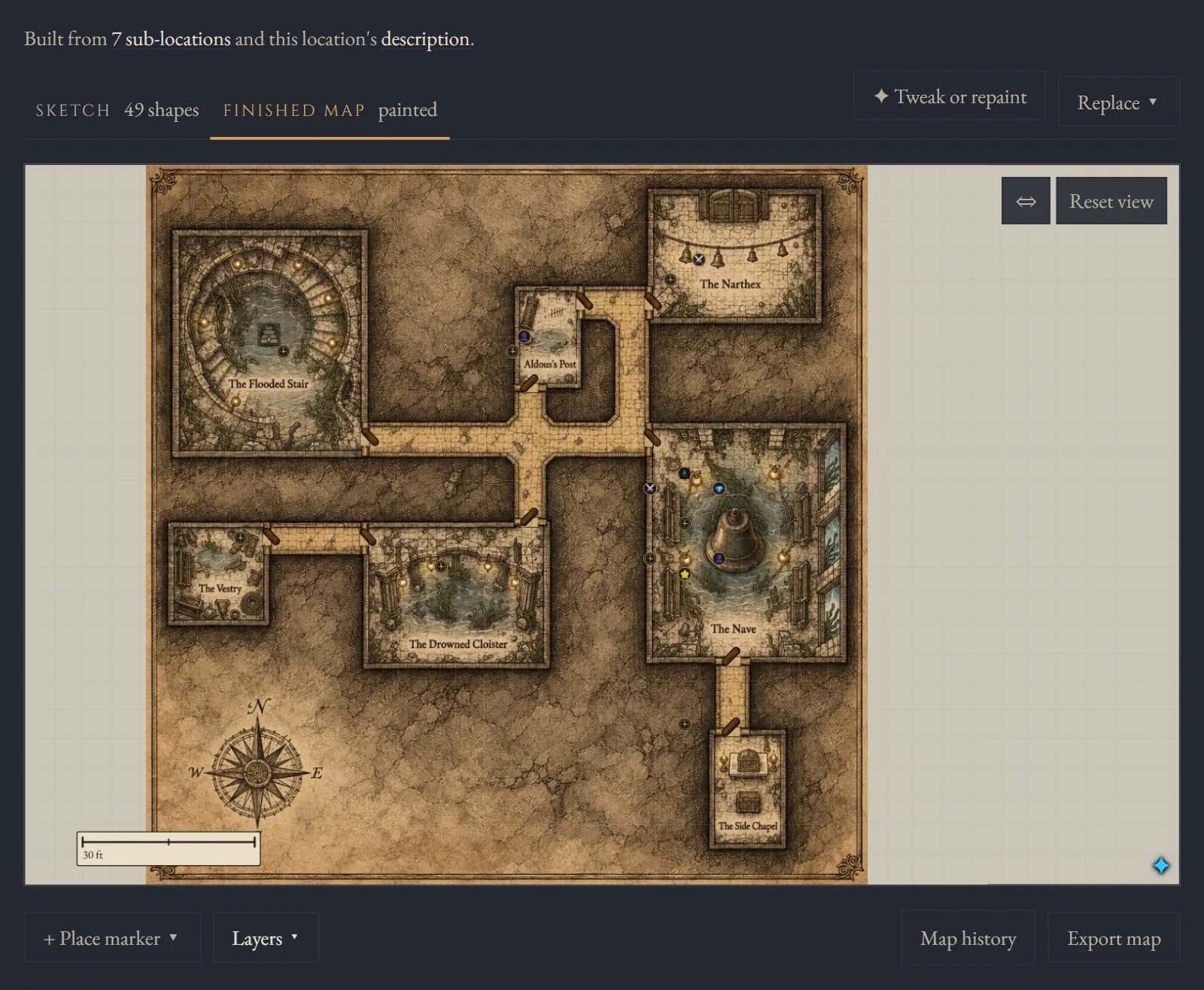
Under the canvas sit Place marker, Layers, Map history and Export map. They work on either tab.
Three ways to make a map
A location with no map shows a card for each way in. Pick the one that matches the workflow you'd like to follow.
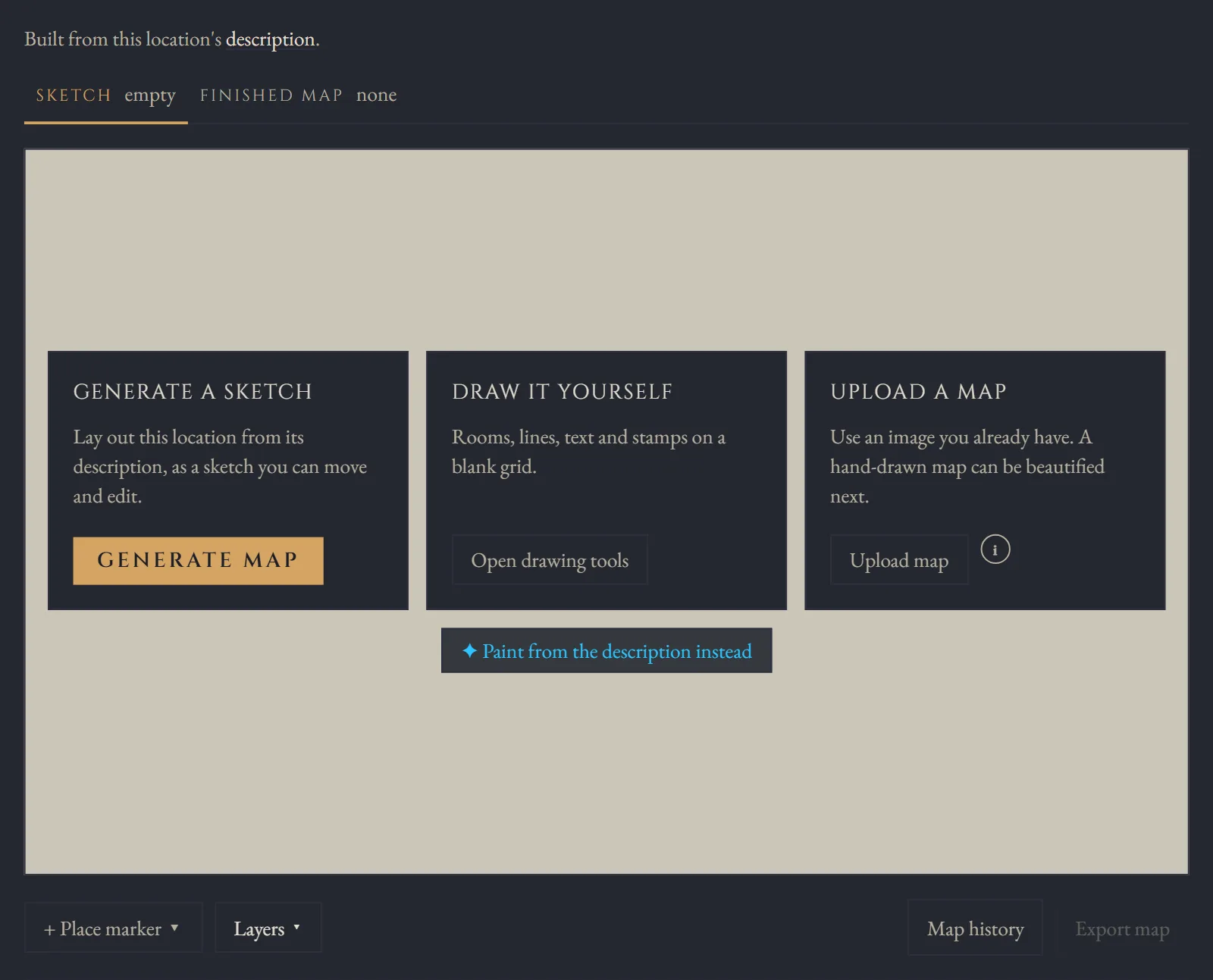
Describe it and generate a sketch
This is the way in when you know the place in words but not on paper.
- Write the description on the General tab.
- Add sub-locations for the rooms, buildings or regions you know about. For a settlement, set Population on the Details tab.
- Open the Map tab and check the Built from line.
- Press Generate Map, choose the options, and press Generate.
- Fix the layout while it is still a sketch (see how to edit a sketch).
- Paint it if you want a painting (see how Beautify works).
Generate Map opens a short dialog first, and the dialog says what it will read before it runs.
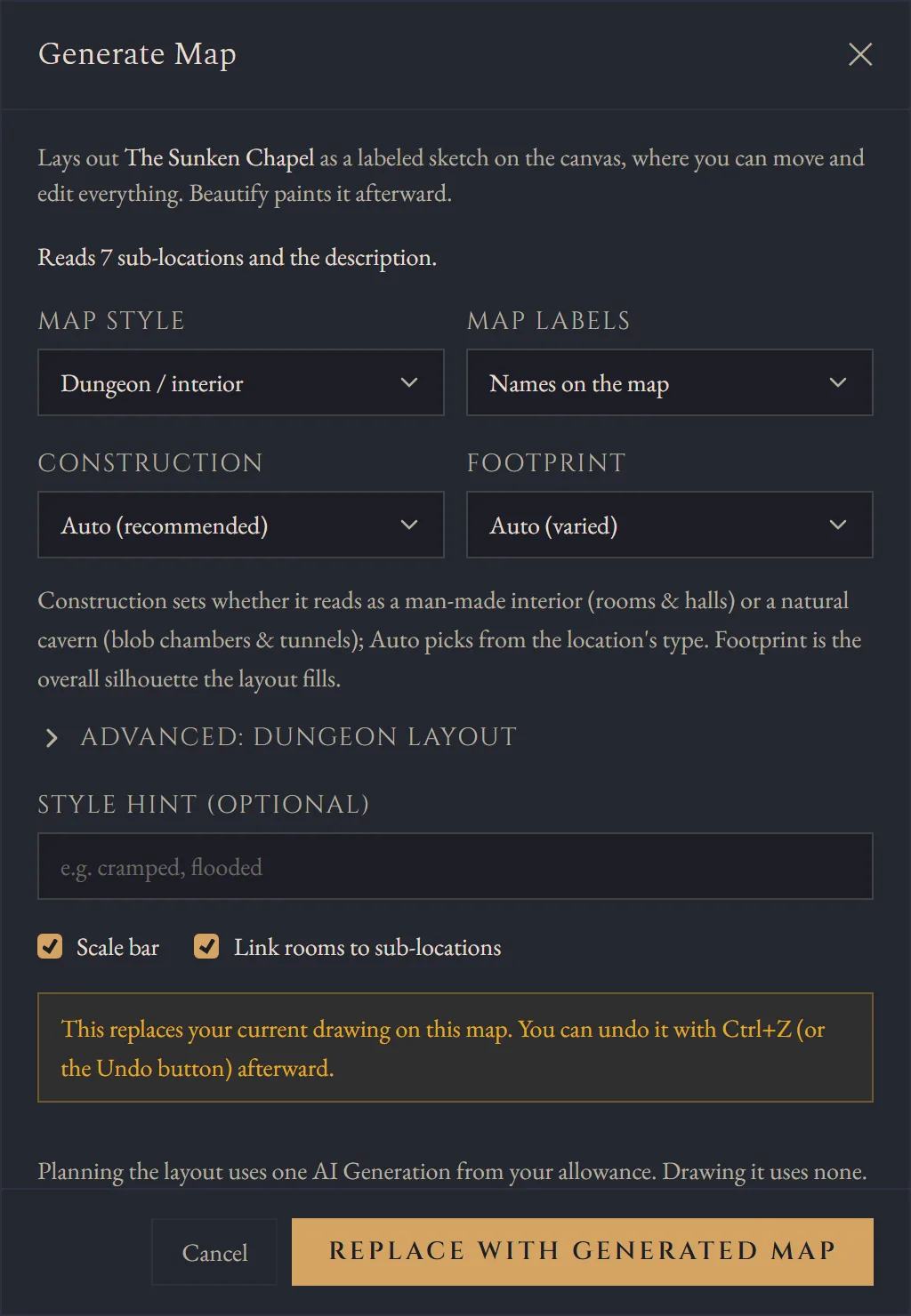
Map style is already set from the location's type, and you can change it.
- Dungeon / interior draws rooms joined by doors and corridors. You choose man-made halls or natural caverns, and the overall footprint.
- Settlement draws streets, blocks and your buildings. Its size comes from Population, or you can pick one for this map only.
- Overworld / region draws terrain. You choose inland, coastal or a continent in open ocean, how many landmasses, and how jagged the coast is. It starts inland unless the location's description or details mention a sea or coast.
- Single room interior draws one room and what is in it, read from the description.
Map labels puts names on the map, a numbered key beside it, or both. Leave Link rooms to sub-locations on and you can double-click a room on the sketch to open that room's own page.
The layout itself is drawn by rules, not by AI. A single AI Generation plans which room goes where, and the dialog tells you so. If you turn AI organizing off in Settings, Generate Map draws from your sub-locations alone and uses the procedural generation rules only, and costs no AI Generation.
Don't like the result? Regenerate tries again with the same options, and Undo brings the last one back. Dungeons are cheap to rebuild when nobody lives in them yet.
Draw it yourself
Sometimes you want to have complete control over the placement of every wall, building and tree. For the master cartographers, the drawing tools provide this control. In this case, no description or sub-locations are required.
- Press Open drawing tools on the Draw it yourself card.
- Draw the rooms, walls and paths with the drawing tools (see how to edit a sketch).
- Add labels with Text and symbols with Stamp.
- To give a room its own page, select it and link it to a sub-location, or create one on the spot.
- Stop there, or paint it with Beautify Map.
Upload a hand-drawn map and Beautify it
This is the way in when the map already exists on paper, on graph paper, or in another tool, and you want it painted.
- Scan or photograph the drawing.
- Press Upload map on the Upload a map card. It takes a JPEG, PNG or WebP of up to 15 MB, and the image becomes the finished map straight away.
- Press the gold Beautify Map button. It paints a finished map from your drawing, and reads the description and sub-locations for what goes in each room.
- Review the painting, and accept it when you're happy (see how Beautify works).
Accepting the painting replaces the upload, so keep your own copy of the drawing.
Other ways in
- Upload a finished map and stop. A map that came with an adventure, or one you made in another tool, is done as soon as it is uploaded. Markers, the grid and export all work on it.
- Paint from the description. The Paint from the description instead link under the cards skips the sketch and asks the AI to paint a map from the location's description, details and sub-locations. You get less say over the layout, which is the trade for not drawing one.
Editing a sketch
A generated sketch is a first draft, and a drawn one is never quite done either. Fix it before you paint it, because moving a room on a sketch takes a second and moving it on a painting doesn't work at all.
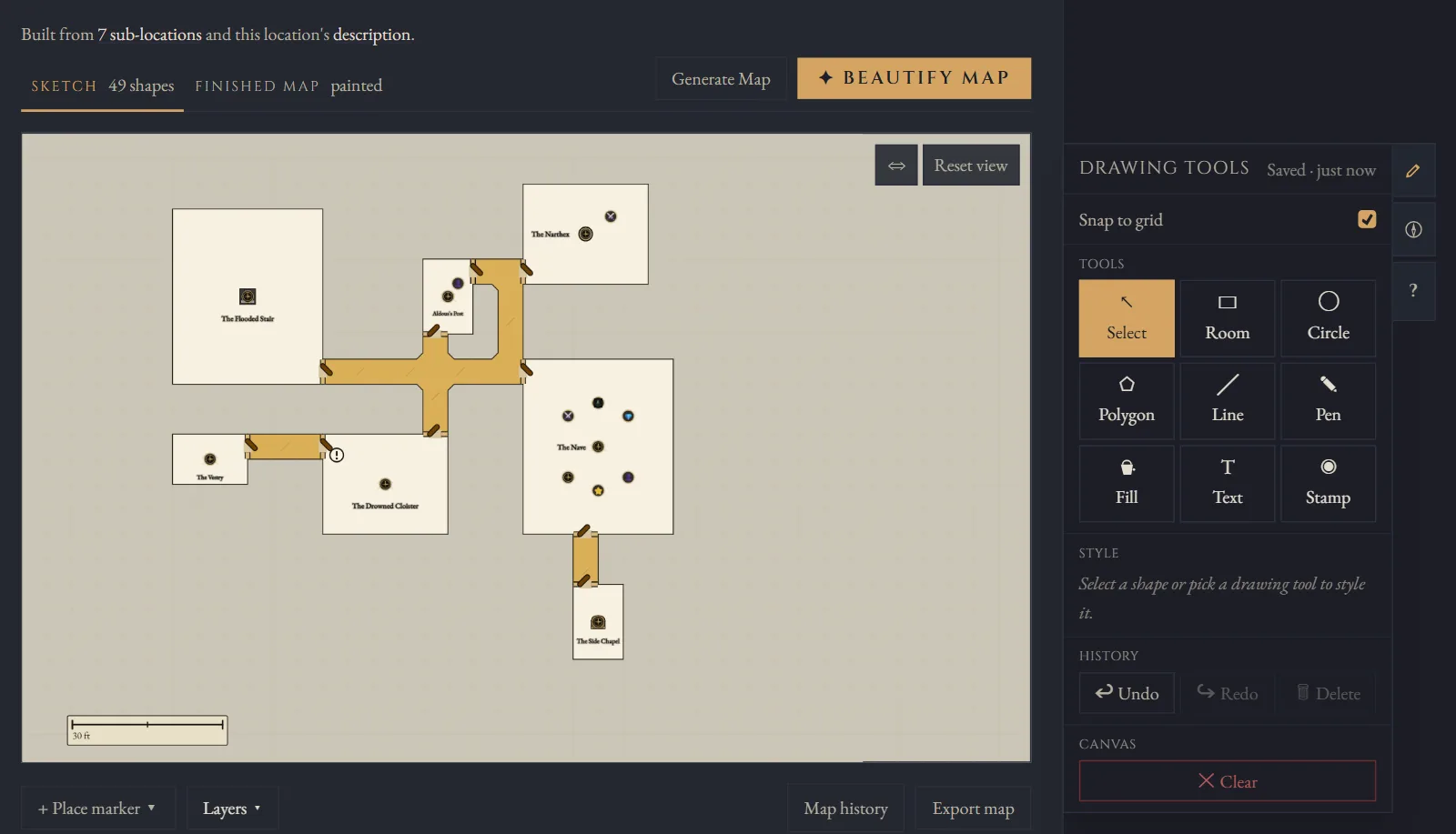
There are nine drawing tools.
- Select moves and reshapes what you've drawn.
- Room, Circle and Polygon draw areas.
- Line and Pen draw walls, roads and anything freehand.
- Fill colors a closed shape.
- Text adds a label.
- Stamp places a symbol such as a door, a stair or a tree.
Snap to grid keeps walls straight, and you can switch it off for a coastline. Select a shape to change its color, line and style. Select a single shape and you can link it to a sub-location, or create a new sub-location on the spot.
- Drag a room to move it. Drag a corner to reshape it.
- Right-click a shape to bring it forward, send it back, add a point or delete it.
- Hold Shift and drag a box to select several shapes at once.
Ctrl+Zundoes,Ctrl+CandCtrl+Vcopy and paste, andDeletedeletes.
Map history keeps earlier versions of the sketch. One is saved before every Generate Map, every Beautify, every clear and at your first save each day, and you can save one yourself. A free account keeps the last 3 for each map, Lorekeeper keeps 10 and Sage keeps 25.
Painting with Beautify Map
With a sketch or an uploaded drawing on the canvas, the gold button reads Beautify Map. It sends the map to an image model with the names of your rooms and what is in them, and asks for a finished map in the style you choose.
- Pick a style: Parchment fantasy, Dark dungeon, Overworld painted, Clean digital, Hand-drawn or Sci-fi. You can also describe your own. Sci-fi draws a science-fiction place, so a dungeon becomes a deck plan, and it is picked for you in a Starfinder campaign. A town or city in Sci-fi is painted as a hologram seen from above at an angle, with its districts where your sketch puts them, its numbers and key kept upright and readable, and the land its description names around it. Your sketch stays flat. Markers follow the tilt onto that map, but the painting only roughly keeps the sketch's shape, so you may need to nudge a few.
- Press Generate. A map takes a minute or two.
- Close the dialog if you like. The map keeps painting, and the Finished map tab shows the time so far.
- When the tab says
ready to review, the gold button reads Review the map. - Ask for a change in words, such as bluer water or a compass rose, or press Accept map.
Nothing replaces your map until you accept it. Turn Show traps & secrets off first if you want a map you can hand to players.
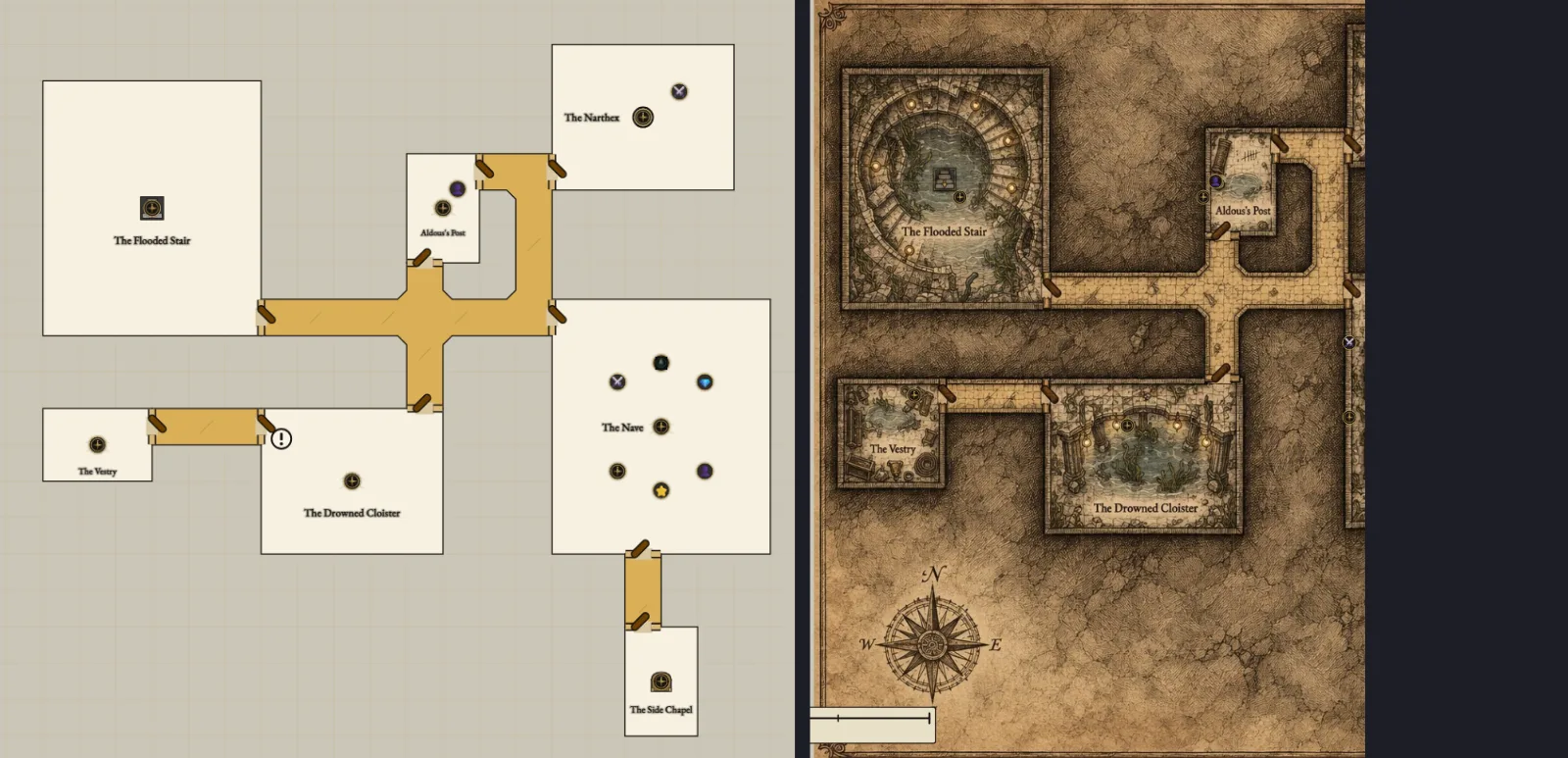
This is the step that uses AI to make a picture, and it is optional. The sketch is yours, the layout is yours, and the painting is a rendering of both. A finished map made this way carries a small blue mark in the app so you can always tell it from one you uploaded. If you turn AI art off in Settings, Beautify Map and painting from the description leave the Map tab, and your sketch or upload is the finished map.
Keeping the two sides in step
Accepting a map opens the Finished map side. The sketch is one click away and its tab still says how many shapes it has.
If you go back and change the sketch, the painting doesn't change with it. The Map tab tells you. The Sketch tab reads edited, the Finished map tab reads from an earlier sketch, and the gold button becomes Beautify again. You decide whether the change is worth a new painting. A moved label probably isn't. A new wing probably is.
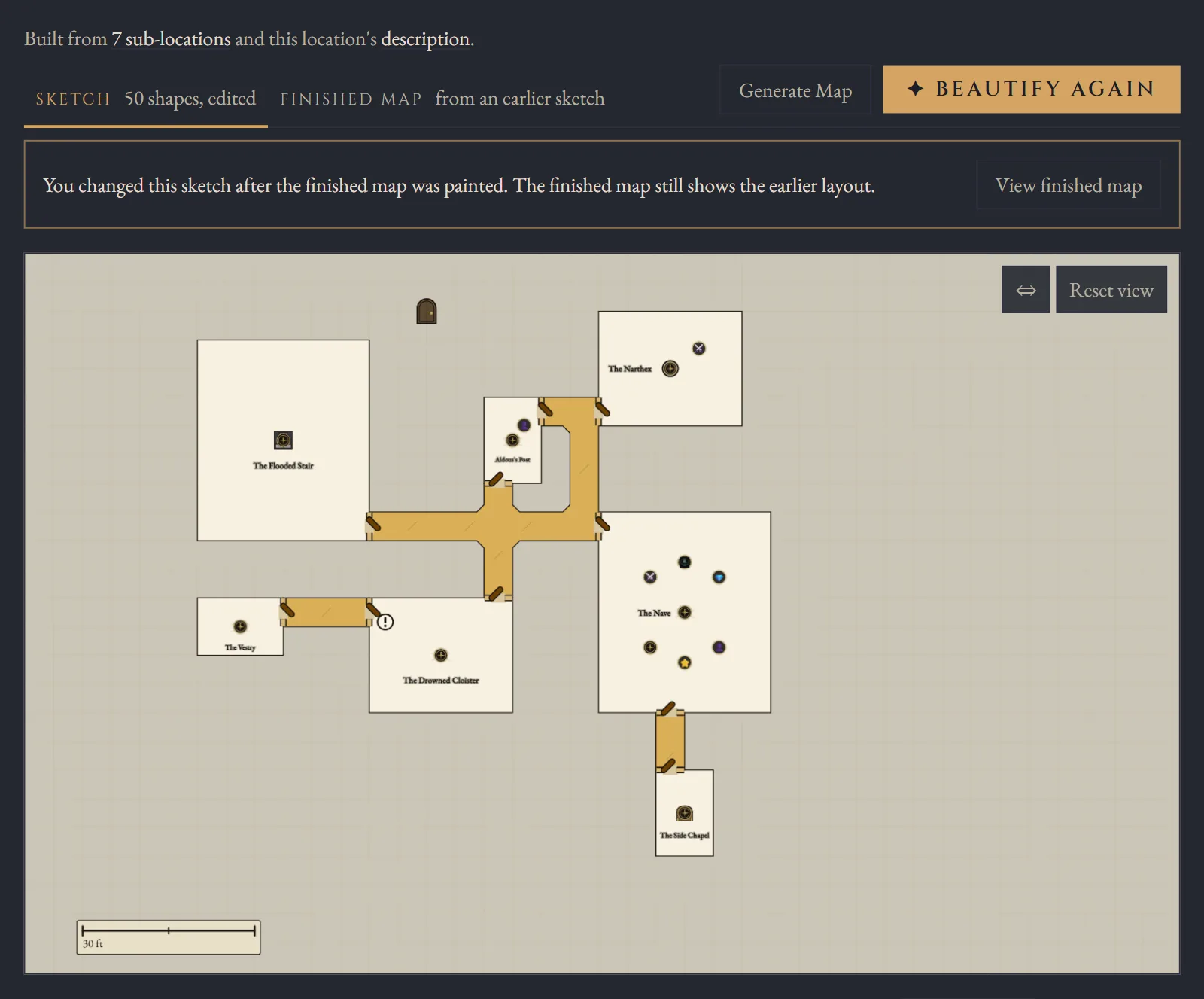
To draw on top of a finished map, open Layers and tick Show sketch over the map. On an upload with nothing sketched yet, the Sketch side offers Draw over the map instead. Either way, it is how you trace the rooms of an upload so they can link to their own pages.
Markers, grid and export
Markers are pins. They sit on top of either side and are never painted in. Place marker offers seven kinds.
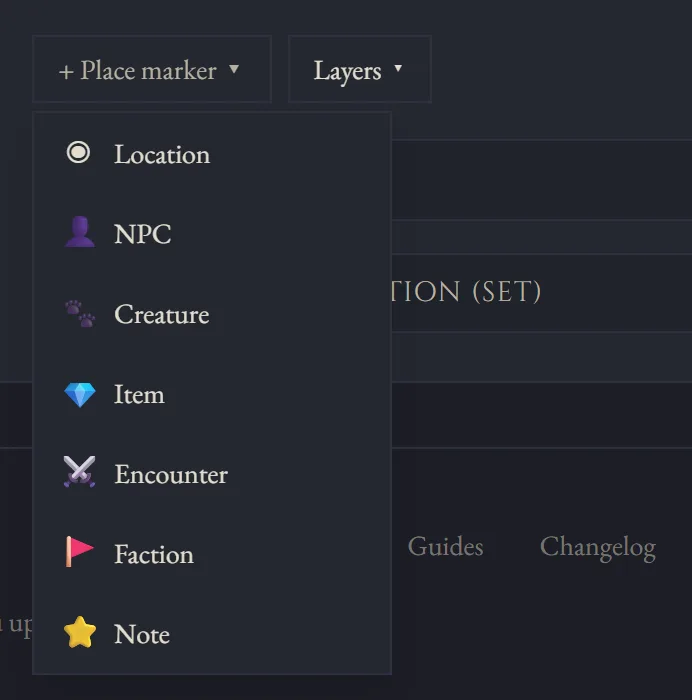
Pick a kind, click the map, and choose what it points to. Drag a marker to move it, hold Shift and click it to open what it links to, and right-click it to change its label, icon or note. Use a marker for the thing your players will ask about. Use a Stamp for scenery that should be part of the picture.
Grid configuration under the map sets a square or hex grid, the feet in a cell and the size of a cell. Layers turns the grid, the scale bar and the markers on and off.
Export map downloads a PNG of the map as it shows now, with whichever layers are on. The map also prints with the location when you export it as a PDF.
What it costs
Every map tool works on a free account. Two steps draw on monthly allowances.
Uploading your own image as a marker's icon needs Lorekeeper. The built-in symbols are free.
Your map checklist
- Pick your way in. Generate a sketch from what you've written, draw it yourself, or upload a map you already have.
- Describe the place, if you're generating. Add a description, sub-locations and, for a settlement, Population.
- Check the Built from line. It names what the map will be made from.
- Fix the layout. Move, reshape and relabel while it is still a sketch.
- Paint it, if you want a painting. Beautify a sketch or a hand-drawn upload, review the result, tweak it in words, then accept.
- Place markers. Pin the NPCs, creatures, items and encounters that matter.
- Set the grid and scale if you'll use the map for tactical play.
- Export it, or let it print with the location.
Frequently asked questions
Is the map maker free?
Yes. Drawing, uploading, markers, the grid and export are free on any account. Generate Map uses one of a free account’s 50 monthly AI Generations, and Beautify Map uses one image render, with up to 3 maps a month on a free account. Accepting a painted map costs nothing.
Do I need AI to make a map?
No. You can draw the whole map with the drawing tools or upload one you already have, and neither uses AI. Generate Map uses one AI Generation to plan the layout, and with AI organizing turned off in Settings it draws from your sub-locations with none. Beautify Map is the only step that uses AI to make a picture, and it is optional.
What kinds of maps can I make?
Dungeons and building interiors, single rooms, settlements from a hamlet to a metropolis, and overworld maps of regions, kingdoms and continents. Generate Map picks a style from the location’s type, and you can change it.
Can I edit a map after Beautify Map paints it?
The sketch stays editable, and the painted map doesn’t change with it. When you change the sketch, the Map tab says the two are out of step and offers Beautify again. You can also ask for a change to the painting in words, such as bluer water, with Tweak or repaint.
Can I use a map I made somewhere else?
Yes. Upload a JPEG, PNG or WebP of up to 15 MB and it becomes the location’s finished map. You can place markers on it, set a grid, and draw over it to link its rooms to their own pages.
What is the difference between a marker and a stamp?
A stamp is a symbol in the sketch, such as a door or a tree, and Beautify Map paints it into the picture. A marker is a pin on top of the map that links to an NPC, creature, item, encounter, faction or another location, or holds a note. Markers are never painted in.
Free tools that help
Location Builder
Build the places of your world: cities, dungeons, wilderness, taverns, and beyond. Type-specific fields for every location kind. Free, no account required, and a free account adds AI Generation and DM Assist.
Open the Location Builder →Encounter Builder
Balance fights for any party in D&D 5e, Pathfinder 2e or Starfinder 2e. Search the full SRD monster list or add custom creatures, free with no account. Sign up free to pull in your own creatures and your campaign’s NPCs.
Open the Encounter Builder →NPC Builder
Build detailed NPCs for D&D 5e, Pathfinder 2e, Starfinder 2e, or any tabletop system: appearance, personality, backstory, secrets, and stat blocks. Free, no account required.
Open the NPC Builder →